Tips for Scanning Chrome Cards
Alex Lynn
Tips for Scanning Chrome Cards
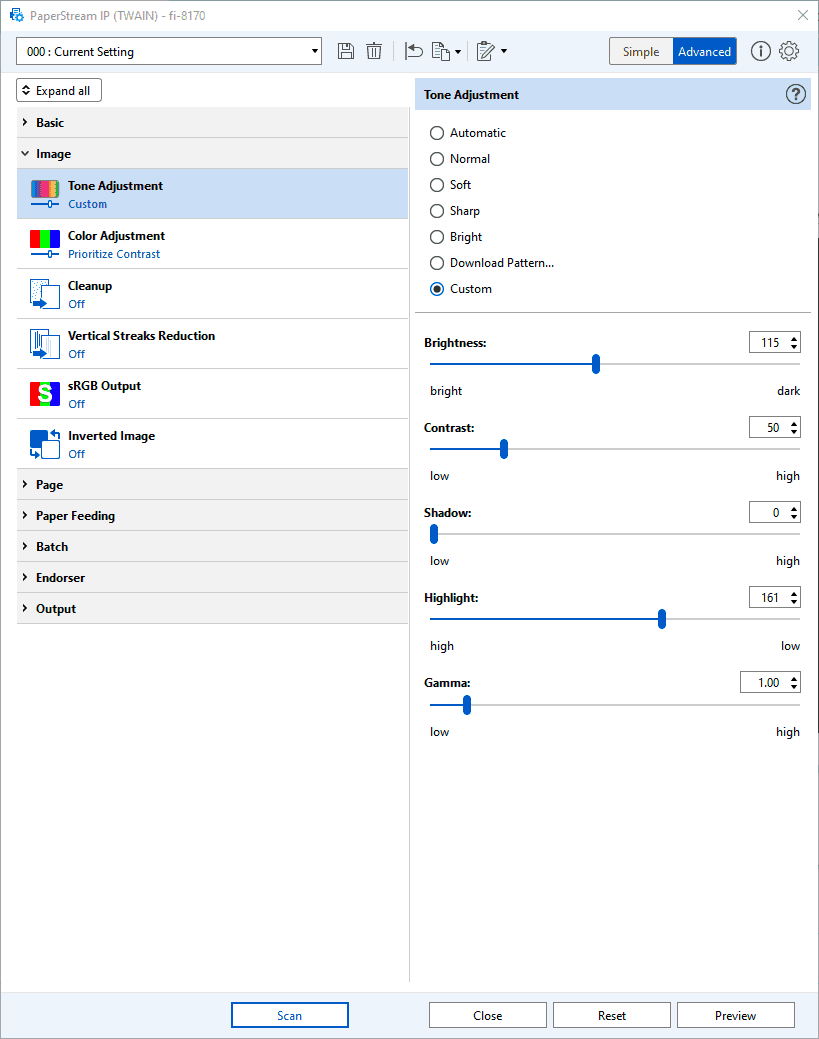
Scanning chrome cards is challenging. Due to the mirror finish, the beams from auto-feed and flatbed scanners end up making them often look dark by default. But there is a way! If you are using a scanner like the fi-8170, you can configure an alternate profile for these types of cards, and adjust the contrast and brightness to ensure they come out looking much better, and improve your match-rate on CDP.
Paper Stream Capture Preview Mode
In PaperStream capture click the scan settings button in the top right hand corner of the application.
Next then click the scanner settings button to bring up the settings for your particular scanner.
Place 1 card that you’d like to adjust the settings for facedown inside of your Ricoh Scanner.
Then in the bottom right hand of the settings pop up click the preview button.
Then you’ll see a preview scan of your card appear on the screen and you can live adjust the color settings to your liking for that particular type of card.
Click Save As and save a new profile. Give it a name like “Chrome Cards” so you know to select that profile whenever you are working on a particular card from that type.